

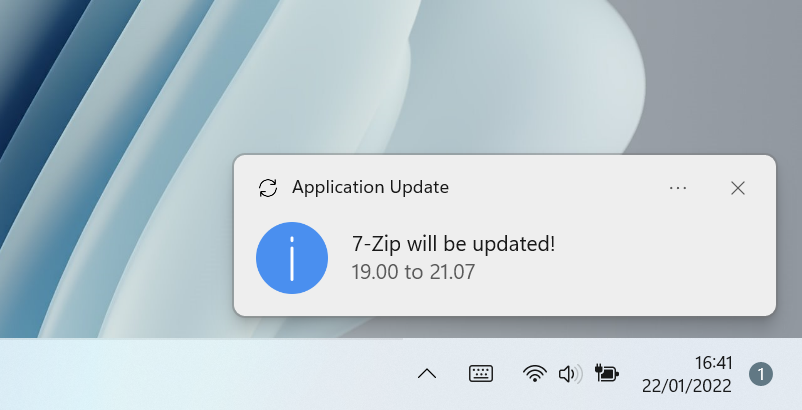
This project uses the Winget tool to daily update apps (with system context) and notify users when updates are available and installed.
Just download latest release WAU.msi:


The following command will install WAU through winget itself in the newest version available.
winget install Romanitho.Winget-AutoUpdateYou can also download the latest release of the add-on WAU Settings GUI (for Winget-AutoUpdate) and install it (this will install both WAU and a GUI that provides a user-friendly portable standalone interface to modify every aspect of Winget-AutoUpdate (WAU)).
You can exclude apps from update job (for instance, apps you want to keep at a specific version or apps with built-in auto-update): Add (or remove) the apps' ID you want to disable autoupdate to 'excluded_apps.txt'. (File must be placed in the same folder as WAU.msi).
You can update only pre-selected apps. To do so, create an "included_apps.txt" with the apps' ID of the apps you want to auto-update and place it in the same folder as WAU.msi during install.
The lists can contain Wildcard (*). For instance
Mozilla.Firefox*will take care of all Firefox channels.
List and Mods folder content will be copied to WAU install location:

You can choose which notification will be displayed: Full, Success only, Errors only or None.
You can easily translate toast notifications by creating your locale xml config file (and share it with us 😉).
WAU runs ,by default, at logon. You can configure the frequency with options (Daily, BiDaily, Weekly, BiWeekly, Monthly or Never).
You can find logs in install location, in logs folder for priviledged executions. For user runs (Winget-Install.ps1) a log file will be created at %AppData%\Winget-AutoUpdate\Logs .
If Intune Management Extension is installed, a SymLink (WAU-updates.log) is created under C:\ProgramData\Microsoft\IntuneManagementExtension\Logs
If you are deploying winget Apps with Winget-Install a SymLink (WAU-install.log & WAU-user_%username%.log) is also created under C:\ProgramData\Microsoft\IntuneManagementExtension\Logs
As explained in this post, Winget cannot detect the current version of some installed apps. We decided to skip managing these apps with WAU to avoid retries each time WAU runs:

Eventually, try to reinstall or update app manually to see if new version is detected.
We might want to stop WAU on metered connection (to save cellular data on connection sharing for instance). The default behavior will detect and stop WAU on limited connections (only for fresh install).
To force WAU to run on metered connections anyway, run new installation with -RunOnMetered parameter.
WAU runs with system and user contexts. This way, even apps installed on User's scope are updated. Shorcuts for manually run can also be installed.
By default, scripts and components will be placed in "Program Files" location (inside a Winget-AutoUpdate folder).
Same process as new installation.
By default, WAU AutoUpdate is enabled. It will not overwrite the configurations, excluded_apps list,...
Mainly for admins or advanced user installation.
You can run the WAU.msi script with parameters :
Install Winget-AutoUpdate and prerequisites silently.
Default value NO. Set RUN_WAU=YES to run WAU just after installation.
Default value 0. Set DISABLEWAUAUTOUPDATE=1 to disable Winget-AutoUpdate self update checking. By default, WAU auto updates if new version is available on Github.
Set USEWHITELIST=1 to force WAU to use WhiteList. During installation, if a whitelist is provided, this setting is automatically set to 1.
Get Black/White List from external Path (URL/UNC/Local/GPO) - download/copy to Winget-AutoUpdate installation location if external list is newer.
PATH must end with a Directory, not a File...
...if the external Path is an URL and the web host doesn't respond with a date/time header for the file (i.e GitHub) then the file is always downloaded!
If the external Path is a Private Azure Container protected by a SAS token (resourceURI?sasToken), every special character should be escaped at installation time.
It doesn't work to call Powershell in CMD to install WAU with the parameter:
-ListPath https://storagesample.blob.core.windows.net/sample-container?v=2023-11-31&sr=b&sig=39Up9jzHkxhUIhFEjEh9594DIxe6cIRCgOVOICGSP%3A377&sp=rcw
Instead you must escape every special character (notice the % escape too) like:
-ListPath https://storagesample.blob.core.windows.net/sample-container^?v=2023-11-31^&sr=b^&sig=39Up9jzHkxhUIhFEjEh9594DIxe6cIRCgOVOICGSP%%3A377^&sp=rcw
If a blacklist or whitelist is configured via Group Policy (GPO), WAU will automatically use these settings. There is no longer a need to specify "GPO" as a value for ListPath, detection is automatic as soon as a list is defined in Group Policy.
Get Mods from external Path (URL/UNC/Local/AzureBlob) - download/copy to mods in Winget-AutoUpdate installation location if external mods are newer.
For URL: This requires a site directory with Directory Listing Enabled and no index page overriding the listing of files (or an index page with href listing of all the Mods to be downloaded):
<ul>
<li><a  href="Adobe.Acrobat.Reader.32-bit-installed.ps1">Adobe.Acrobat.Reader.32-bit-installed.ps1</a></li>
<li><a  href="Adobe.Acrobat.Reader.64-bit-override.txt">Adobe.Acrobat.Reader.64-bit-override.txt</a></li>
<li><a  href="Notepad++.Notepad++-installed.ps1">Notepad++.Notepad++-installed.ps1</a></li>
<li><a  href="Notepad++.Notepad++-uninstalled.ps1">Notepad++.Notepad++-uninstalled.ps1</a></li>
</ul>
Validated on IIS/Apache.
Nota bene IIS :
- The extension .ps1 must be added as MIME Types (text/powershell-script) otherwise it's displayed in the listing but can't be opened
- Files with special characters in the filename can't be opened by default from an IIS server - config must be administrated: Enable Allow double escaping in 'Request Filtering'
For AzureBlob: This requires the parameter -AzureBlobURL to be set with an appropriate Azure Blob Storage URL including the SAS token. See -AzureBlobURL for more information.
Used in conjunction with the -ModsPath parameter to provide the Azure Storage Blob URL with SAS token. The SAS token must, at a minimum, have 'Read' and 'List' permissions. It is recommended to set the permisions at the container level and rotate the SAS token on a regular basis. Ensure the container reflects the same structure as found under the initial mods folder.
Default value 0. Set USERCONTEXT=1 to install WAU with system and user context executions.
Applications installed in system context will be ignored under user context.
Default value 0. Set BYPASSLISTFORUSERS=1 to bypass Black/White list when run in user context.
Set DESKTOPSHORTCUT=1 to create a shortcut for user interaction on the Desktop to run task Winget-AutoUpdate
Set STARTMENUSHORTCUT=1 to create shortcuts for user interaction in the Start Menu to run task Winget-AutoUpdate and open Logs.
Specify the Notification level: Full (Default, displays all notification), SuccessOnly (Only displays notification for success), ErrorsOnly (Only displays notification for errors) or None (Does not show any popup).
Default value 1. Set UPDATESATLOGON=0 to disable WAU from running at user logon.
Default value Never. Specify the update frequency: Daily, BiDaily, Weekly, BiWeekly, Monthly or Never.
Default value 6AM (06:00:00). Specify the time of the update interval execution time. Example UPDATESATTIME="11:00:00"
Default value is none (00:00). This setting specifies the delay for the scheduled task. A scheduled task random delay adds a random amount of wait time (up to the specified maximum) before the task starts. This helps prevent many devices from running the task at the exact same time. This is not applicable to "on logon" triggers.
Default value 1. Set DONOTRUNONMETERED=0 to force WAU to run on metered connections. May add cellular data costs on shared connexion from smartphone for example.
Specify number of allowed log files.
Default is 3 out of 0-99:
Setting MaxLogFiles to 0 don't delete any old archived log files.
Setting it to 1 keeps the original one and just let it grow.
Specify the size of the log file in bytes before rotating.
Default is 1048576 = 1 MB (ca. 7500 lines)
Specify Winget-AutoUpdate installation location. Default: C:\Program Files\Winget-AutoUpdate (Recommended to leave default).
You can use Winget-Install to deploy the package (this example with an override of parameters):
"%systemroot%\sysnative\WindowsPowerShell\v1.0\powershell.exe" -noprofile -executionpolicy bypass -file "C:\Program Files\Winget-AutoUpdate\Winget-Install.ps1" -AppIDs "Adobe.Acrobat.Reader.64-bit --scope machine --override \"-sfx_nu /sAll /rs /msi EULA_ACCEPT=YES DISABLEDESKTOPSHORTCUT=1""You can also use Winget-Install to deploy the same package in SCCM:
powershell.exe -noprofile -executionpolicy bypass -file "C:\Program Files\Winget-AutoUpdate\Winget-Install.ps1" -AppIDs "Adobe.Acrobat.Reader.64-bit --scope machine --override \"-sfx_nu /sAll /rs /msi EULA_ACCEPT=YES DISABLEDESKTOPSHORTCUT=1""Instead of including the override parameters in the install string you can use a Mod (mods\Adobe.Acrobat.Reader.64-bit-override.txt) with the content:
"-sfx_nu /sAll /rs /msi EULA_ACCEPT=YES DISABLEDESKTOPSHORTCUT=1"- A standard single installation: -AppIDs Notepad++.Notepad++
- Multiple installations: -AppIDs "7zip.7zip, Notepad++.Notepad++"
As a custom detection script you can download/edit winget-detect.ps1 (change app to detect [Application ID]) in Intune/SCCM
A nice feature is if you're already using the deprecated standalone script winget-install.ps1 from the old repo and have placed it somwhere locally on all clients you can make a SymLink in its place and keep using the old path (avoiding a lot of work) in your deployed applications (Winget-Install.ps1 takes care of the SymLink logic).
Read more in the Policies section.
Mods for WAU allows you to craft a script to do whatever you like via _WAU-mods.ps1 in the mods folder.
This script executes if the network is active/any version of Winget is installed/WAU is running as SYSTEM.
If ExitCode is 1 from _WAU-mods.ps1 then Re-run WAU.
In addition to this legacy handling, a new action-based system is now supported.
This system lets you define multiple actions and conditions directly in your mod scripts, enabling more advanced automation and control over the WAU process.
With actions, you can execute different scripts, check results, and control the WAU flow with greater flexibility and improved logging compared to relying solely on Exit Code.
Likewise _WAU-mods-postsys.ps1 can be used to do things at the end of the SYSTEM context WAU process before the user run.
You can find more information in README Mods for WAU
The Mods feature allows you to run additional scripts when upgrading or installing an app.
Just put the scripts in question with the AppID followed by the -preinstall, -upgrade, -install, -installed or -notinstalled suffix in the mods folder.
- Runs before upgrade/install:
AppID-preinstall.ps1- Runs during upgrade/install (before install check):
AppID-upgrade.ps1/AppID-install.ps1- Runs after upgrade/install has been confirmed:
AppID-installed.ps1- Runs after a failed upgrade/install:
AppID-notinstalled.ps1- Runs after a failed upgrade/install:
_WAU-notinstalled.ps1(any individualAppID-notinstalled.ps1overrides this global one)
The -install mod will be used for upgrades too if -upgrade doesn't exist (WAU first tries & $Winget upgrade --id and if the app isn't detected after that & $Winget install --id is tried).
AppID-install.ps1 is recommended because it's used in both scenarios.
Example:
If you want to run a script that removes the shortcut from %PUBLIC%\Desktop (we don't want to fill the desktop with shortcuts our users can't delete) just after installing Acrobat Reader DC (32-bit), prepare a powershell script that removes the Public Desktop shortcut Acrobat Reader DC.lnk and name your script like this:Adobe.Acrobat.Reader.32-bit-installed.ps1and put it in the mods folder.
You can find more information in README Mods for WAU, as it's a related feature.
Share your mods with the community:
https://github.com/Romanitho/Winget-AutoUpdate/discussions/categories/mods
You can customize winget behavior per-app using text files (.txt) placed in the mods folder:
Use AppID-override.txt to replace ALL installer arguments (without -h silent mode).
Example:
Adobe.Acrobat.Reader.64-bit-override.txt with the content"-sfx_nu /sAll /rs /msi EULA_ACCEPT=YES DISABLEDESKTOPSHORTCUT=1"
This uses the content as a native winget --override parameter when upgrading.
Use AppID-custom.txt to add extra arguments to the installer (with -h silent mode).
Example:
Adobe.Acrobat.Reader.64-bit-custom.txt with the content"DISABLEDESKTOPSHORTCUT=1"
This uses the content as a native winget --custom parameter when upgrading.
Use AppID-arguments.txt to pass winget parameters (not installer arguments, with -h silent mode).
💡 Locale Tip: Many applications revert to English or system default language during WAU upgrades because winget doesn't remember the original installation locale. To prevent this:
- Best solution: Use locale-specific package IDs in
included_apps.txt(e.g.,Mozilla.Firefox.sv-SEinstead ofMozilla.Firefox) - Alternative: Create
{AppID}-arguments.txtwith--localeparameter to force language on every upgrade
Example for language control (#1073):
Mozilla.Firefox-arguments.txt with the content--locale pl
This prevents Firefox from reverting to English after WAU upgrades.
Better solution: UseMozilla.Firefox.plin included_apps.txt instead ofMozilla.Firefox.
Example for dependency issues (#1075):
Cloudflare.Warp-arguments.txt with the content--skip-dependencies
Example with multiple parameters:
Microsoft.VisualStudio.2022.Community-arguments.txt with the content--locale en-US --architecture x64
Common use cases:
--locale <locale>- Force application language (e.g.,pl-PL,en-US,de-DE)- 💡 Recommended alternative: Use locale-specific package IDs when available (e.g.,
Mozilla.Firefox.sv-SE,Mozilla.Firefox.de,Mozilla.Firefox.ESR.pl) to get latest versions
- 💡 Recommended alternative: Use locale-specific package IDs when available (e.g.,
--skip-dependencies- Skip dependency installations when they conflict--architecture <arch>- Force architecture (x86,x64,arm64)--version <version>- Pin to specific version--ignore-security-hash- Bypass hash verification--ignore-local-archive-malware-scan- Skip AV scanning
--locale and --version, the specific version must have an installer available for that locale. Not all versions support all locales. Check available versions with winget show --id <AppID> --versions.
💡 Locale Best Practice: Search for locale-specific packages with winget search <AppName> to see if your language has a dedicated package ID (e.g., Mozilla.Firefox.sv-SE for Swedish Firefox). These packages are maintained with the latest versions in your preferred language.
Command-line usage: You can also pass arguments when calling Winget-Install.ps1:
.\winget-install.ps1 -AppIDs "Mozilla.Firefox --locale sv-SE"
.\winget-install.ps1 -AppIDs "7zip.7zip, Notepad++.Notepad++"
.\winget-install.ps1 -AppIDs "Adobe.Acrobat.Reader.64-bit --scope machine --override \"-sfx_nu /sAll /msi EULA_ACCEPT=YES\""
Priority: Override > Custom > Arguments (file) > Arguments (command-line) > Default
See _AppID-arguments-template.txt for more examples.
- As reported by soredake, Powershell from MsStore is not supported with WAU in system context. See #113
Feel free to give us any suggestions or optimizations in code and support us by adding a star :)



![@github-actions[bot]](https://avatars.githubusercontent.com/in/15368?s=64&v=4)
![@dependabot[bot]](https://avatars.githubusercontent.com/in/29110?s=64&v=4)


